
I put GitHub Copilot Behind a MITM Proxy. Here's What I found.
A look inside Copilot’s network traffic, harness, memory, and how context is becoming the product.


Hello, Rafael here - every week I cover interesting challenges and developments that I’ve come across recently through the lens of an engineer building AI systems.
Subscribe to get weekly issues 👇
There has been a flurry of AI-powered apps and AI features in the last couple of years. Incumbent players like Slack have swiftly added AI features to its roster. For AI-native ones like Cursor, Notion, ChatGPT Desktop and Claude Desktop, AI was always part of the raison d’être.
The more AI features these apps released, the more I became inclined to look at their inner workings. Hopefully I would be able to uncover a bit of what’s running under the hood; at the very least, I would learn one thing or two about desktop app development.
Coincidentally, I noticed I started exhausting my Copilot credits earlier and earlier each month. This ended up pulling me towards selecting a main candidate for my experiments. I decided to dive deep into VS Code and Copilot.
One common denominator: Electron
Common amongst all of the apps above is the fact that they are built using Electron. Electron is a JavaScript framework which helps developers build and distribute desktop applications. In layman’s terms, it works by bundling a Node.js runtime along with HTML, CSS and JavaScript artifacts, which are then rendered via Chromium.
This removes the need of having multiple codebases in native languages for different platforms (for instance, C# for Windows and Swift for macOS), making it easier for developers to build desktop applications that run across multiple platforms from a single codebase. (Native modules and certain packaging steps still often require per-platform handling, but the bulk of the application logic is shared.)
Because they share Electron, they share a rough architecture, which means whatever I learned probing one should transfer to the others.
Network packets, then source
My first instinct was to just skim through VS Code source and see if it could answer my questions. The problem was that I didn’t have a full set of questions yet - and hunting for them across millions of lines of code would cost me either too much time or too many tokens.
Source code tells you what an app can do; discovering what it actually does at runtime is more challenging. Especially when you still don’t know what you’re looking for.
There was a second problem. VS Code is an exception amongst the apps I had started with: its source code (or at least the majority of it) is open. This is not the case for Claude, ChatGPT, Codex, Notion, and Slack.
That started pushing me toward the reverse engineering route: passively watch the traffic first, let the requests and responses tell me which questions would be worth asking, and only then go to the source to confirm (or disprove) what I was seeing.
It meant getting my hands dirty with Electron’s architecture and network stack - skills that wouldn’t hurt to have afterwards.
Electron’s network architecture
By now we know that Electron apps ship with Chromium. The browser provides the rendering engine for the application’s web based UI, but it also provides a network stack that renderer processes can use for HTTP and WebSocket connections.
This is a common (and recommended) option for enabling apps to speak to a remote backend, but it is not the only one. Applications can also make HTTP requests using Node’s http/https/fetch. Which path the request takes becomes important when you’re trying to intercept it.
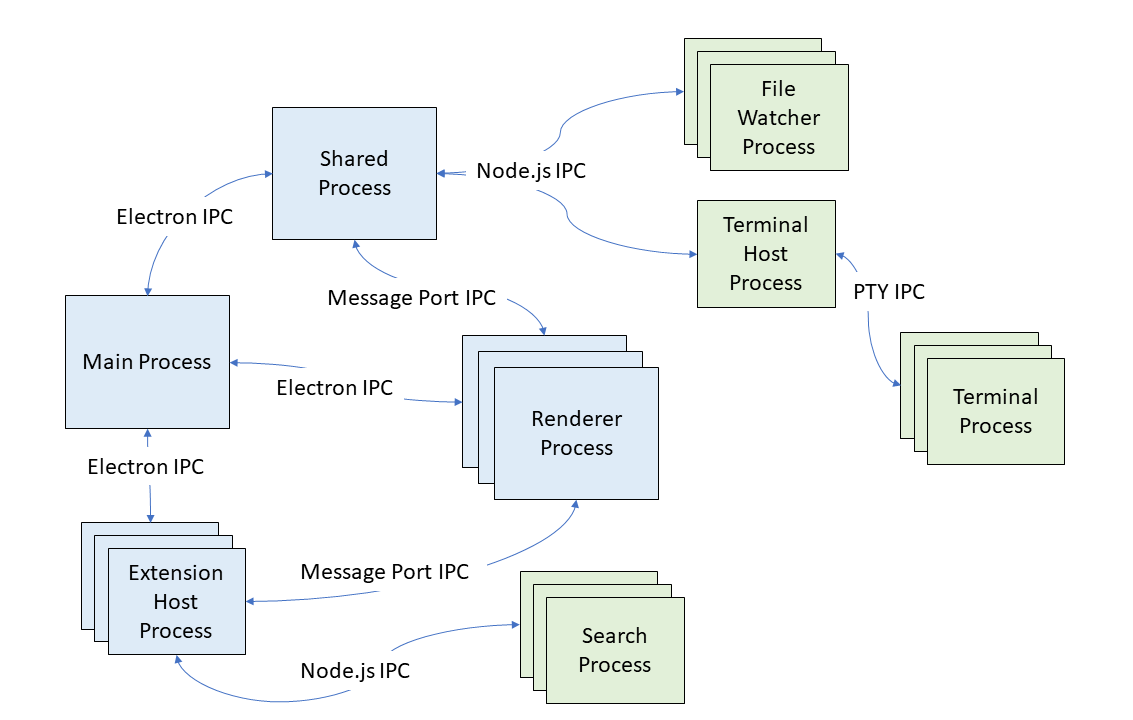
In some cases, like with VS Code, the application will have a decoupled architecture, where there’s a separate group of processes that acts as an extension host. This helps maintain clear boundaries between distinct responsibilities; in the case of VS Code, a clear boundary between UI, code IDE functionality and plugins/extensions.
Inspecting network traffic from Electron apps
One of the classic ways to intercept an application’s network traffic is by standing up a proxy server, and configuring this application to use it.
The proxy acts as a man-in-the-middle (MITM): it intercepts HTTP requests from a client, forwards them to a server, and relays back the server responses to the client.
Fun fact: a similar approach is quite common in corporate network environments for traffic inspection purposes, especially in highly regulated industries. Fittingly, one of the main open source tools used for this is called mitmproxy, which we will use in the next steps.
An important detail is that most of the network traffic nowadays happens via secure HTTP (HTTPS). This means traffic is encrypted using TLS.
By trusting mitmproxy’s locally generated certificate authority (CA), the client can accept the certificates mitmproxy generates on the fly for each destination. Instead of a single end-to-end encrypted connection, you get two: one between the application and mitmproxy, and another between mitmproxy and the destination server.
mitmproxy can therefore decrypt the request, inspect it, establish a separate TLS connection upstream, and forward the response back to the application.
Getting started
If you don’t want to follow along with the code and would just like to see the results, feel free to skip this section.
Installing mitmproxy
On macOS, the simplest way is to use brew:
brew install mitmproxyVS Code Configuration
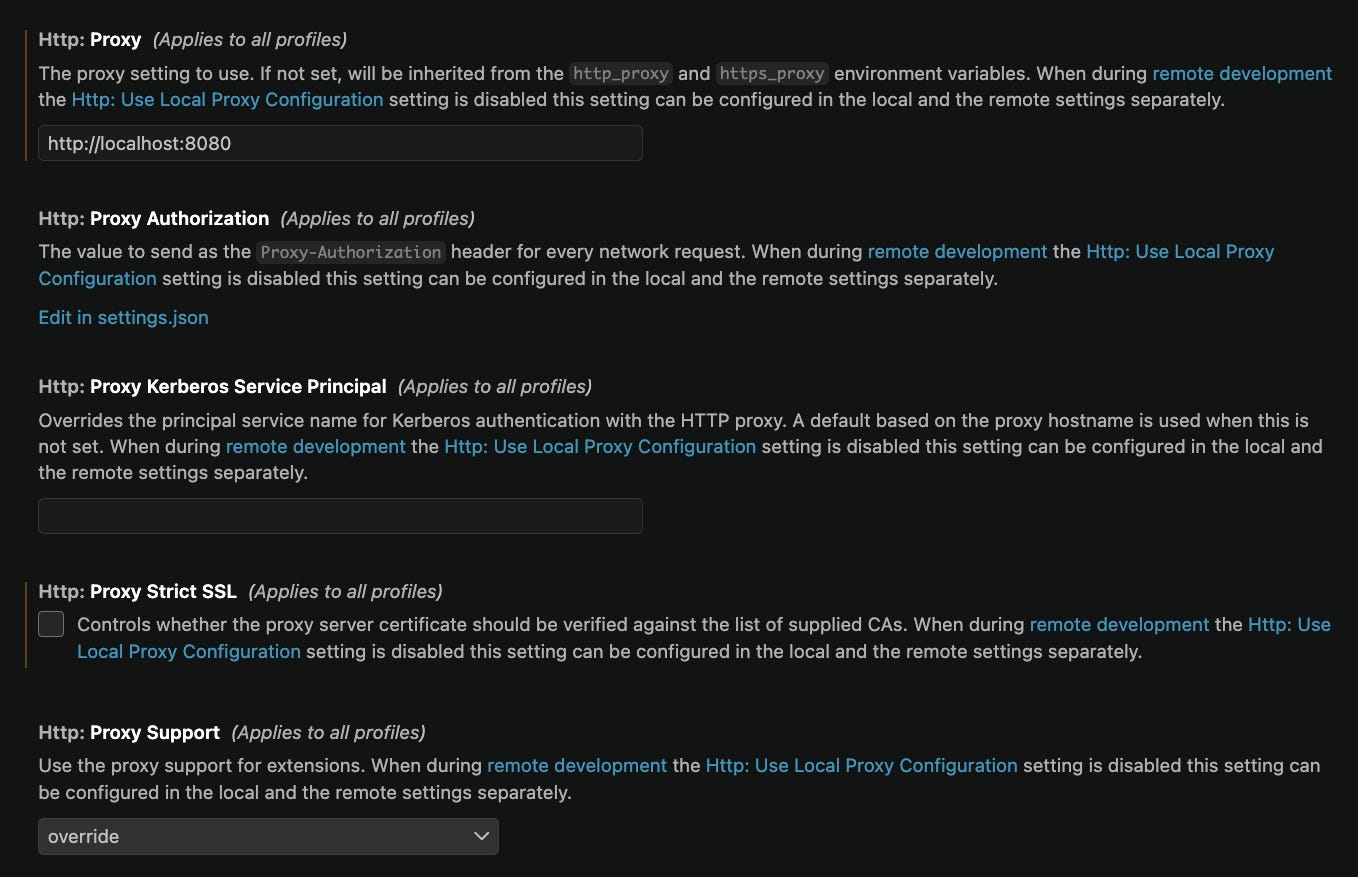
We need to change some settings in VS Code to route its traffic via mitmproxy. You can change these settings by using the hotkey combination Cmd+Shift+P and searching for User Settings. You will then need to make sure that the settings below have the following values:
Http Proxy: http://localhost:8080 (mitmproxy will be listening for connections at this port)
Http Proxy Strict SSL: unchecked (we want to skip verification of mitmproxy’s certificate against a list of CAs)
Http: Proxy Support: override (force proxy support for extensions)
After making these changes, be sure to restart VS Code.
mitm web UI
The final step before getting started is starting up mitmproxy’s web UI:
mitmwebGive it a few seconds and you should start seeing some network traffic from VS Code flowing through it.
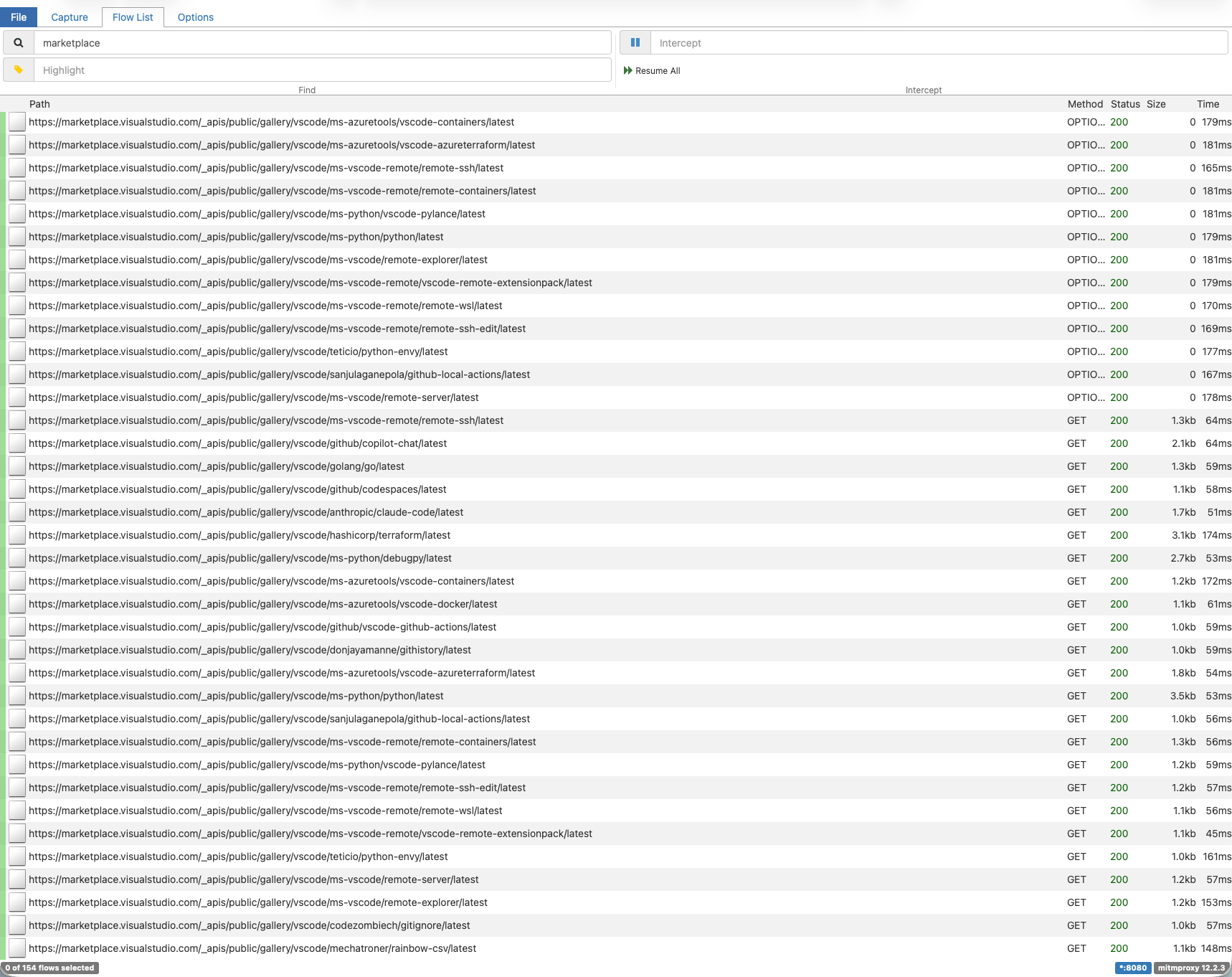
You will notice some text fields on top. You can ignore most of them for now; the most useful is the first one, Search. This field provides powerful search capabilities like keyword search, regex, etc. For instance, if we are particularly interested in the requests made by VS Code to its Extensions Marketplace API, we can simply use marketplace as a filter string.
This will match all requests to https://marketplace.visualstudio.com and all its subpaths.
Stale Extension Host Processes
It could be that even after all this dance, your proxy still doesn’t capture extension traffic. This can happen if VS Code’s Extension Host process group becomes stale. To confirm this, run from the terminal:
ps -eo pid,ppid,lstart,command | grep -i -E "copilot|extensionHost|Code Helper"

# Should display something like this:

27896 27243 Fri Jul 24 15:40:11 2026.    \
    /Applications/Visual Studio Code.app/Contents/Frameworks/ # (...)
Confirm the date that is displayed. If it’s not the same date and time from when you restarted VS Code, the extension host process is most likely stale. Solving this is simple:
In VSCode, open the Command Palette (
Cmd+Shift+P)Run “Developer: Restart Extension Host”
Re-run your
psgrep afterward - you should now see new PIDs with today’s timestamp forCode Helper
What Copilot Does Before You Type Anything
Quickly skim through the network requests from VS Code in mitmweb and you will notice that the majority of them are related to either GitHub or Github Copilot. Before we hit a single key in VS Code or in the Copilot extension, some HTTP requests are made.
High Level Analysis
Requests made by VS Code and Copilot during the bootstrap stage can be allocated into one of the following categories: Auth & Session, Config & Policy, MCP Registry, Repo & Session Context, Model Discovery and Recent repos.
In the next paragraphs, we discuss what I found out about each of these types of requests: what’s included in headers and payloads for requests and responses.
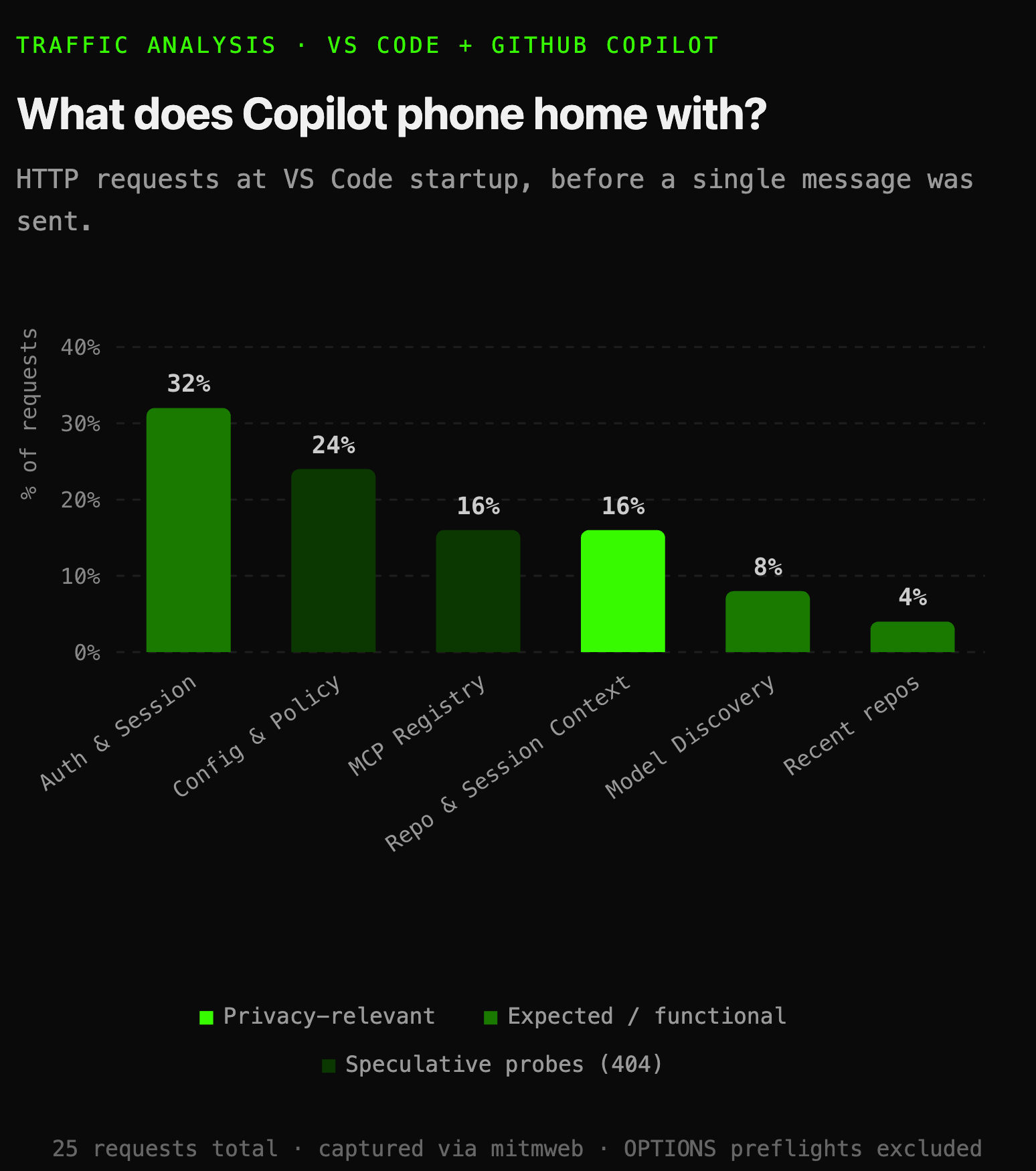
Authentication and session bootstrap
This is the first thing done by Copilot at startup. It fetches an OAuth token, exchanges it for a short-lived token, and validates the user’s entitlements. The flow is quite a regular OAuth one; it is described in the diagram below.
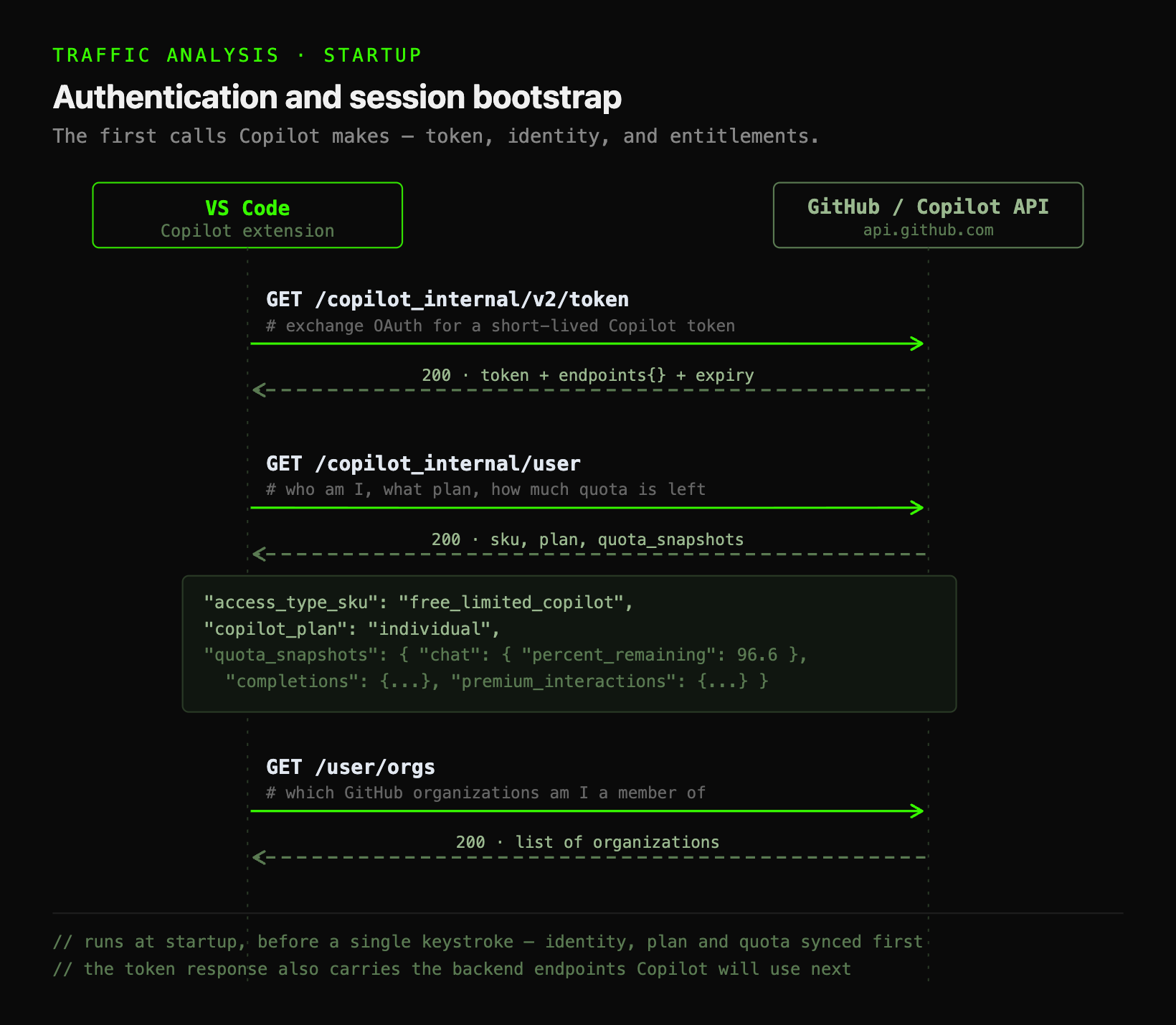
Model and capability discovery
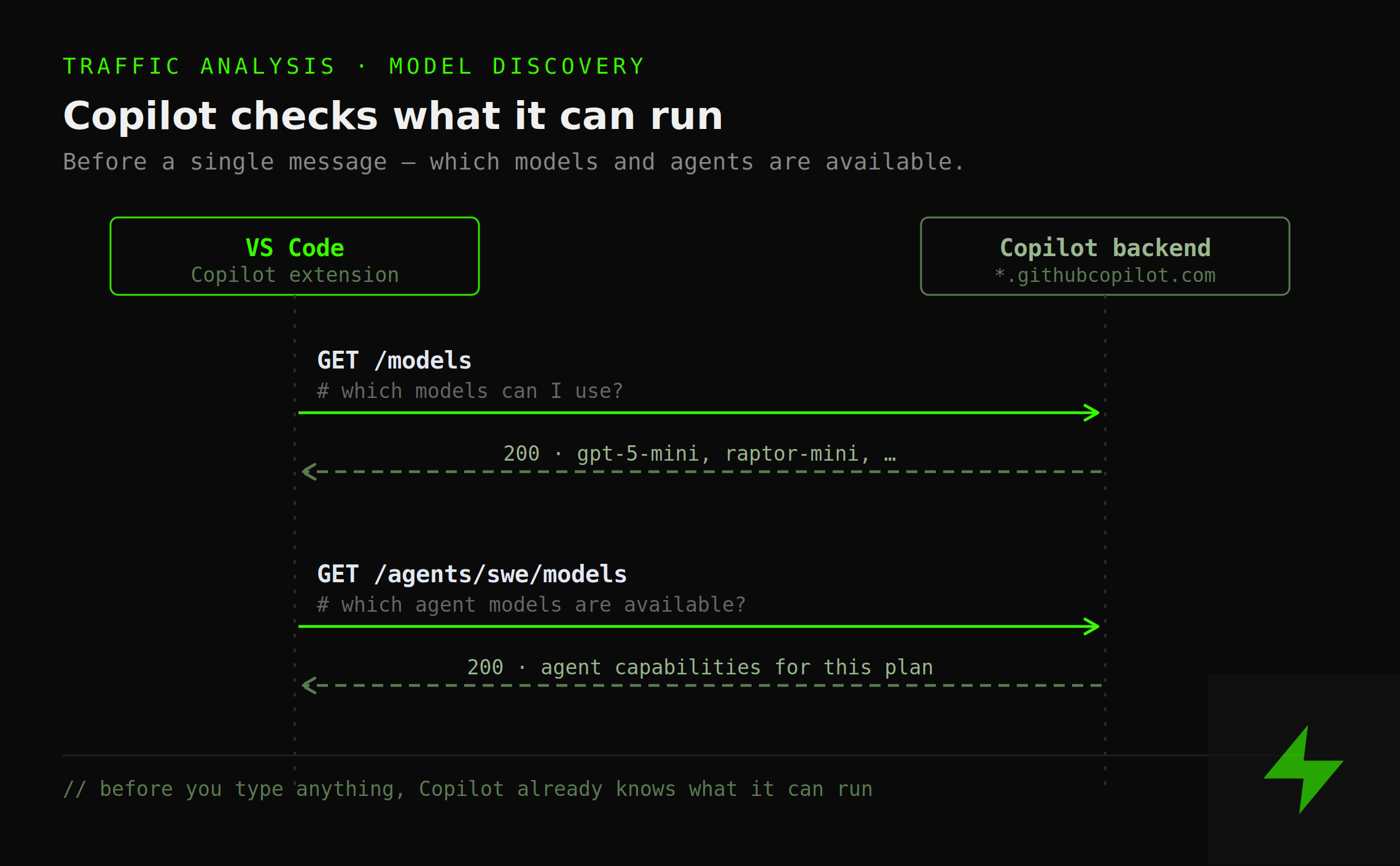
Before making any LLM requests, Copilot checks which models and agent capabilities are available for your account/plan.
There are two separate kinds of requests. First, a request is made to /models. This initial request returns a general list of models which are available within Copilot.
Then, a second request is made to /agents/swe/models. This is a specific request to find out which models are available for agentic capabilities related to Software Engineering (SWE).
Some details on prompts, context and harness
Post bootstrap is where things get interesting.
Copilot’s model router
I selected Auto mode for all the Copilot tests in this experiment. After I sent each message, I was able to capture a request to a /models/session/intent endpoint before any model answered.
What’s happening here is: your prompt gets scored against possible intents, such as code-gen, debugging, reasoning and tool-use. The intent classification outcome helps Copilot define which of the available models will fulfill the task.
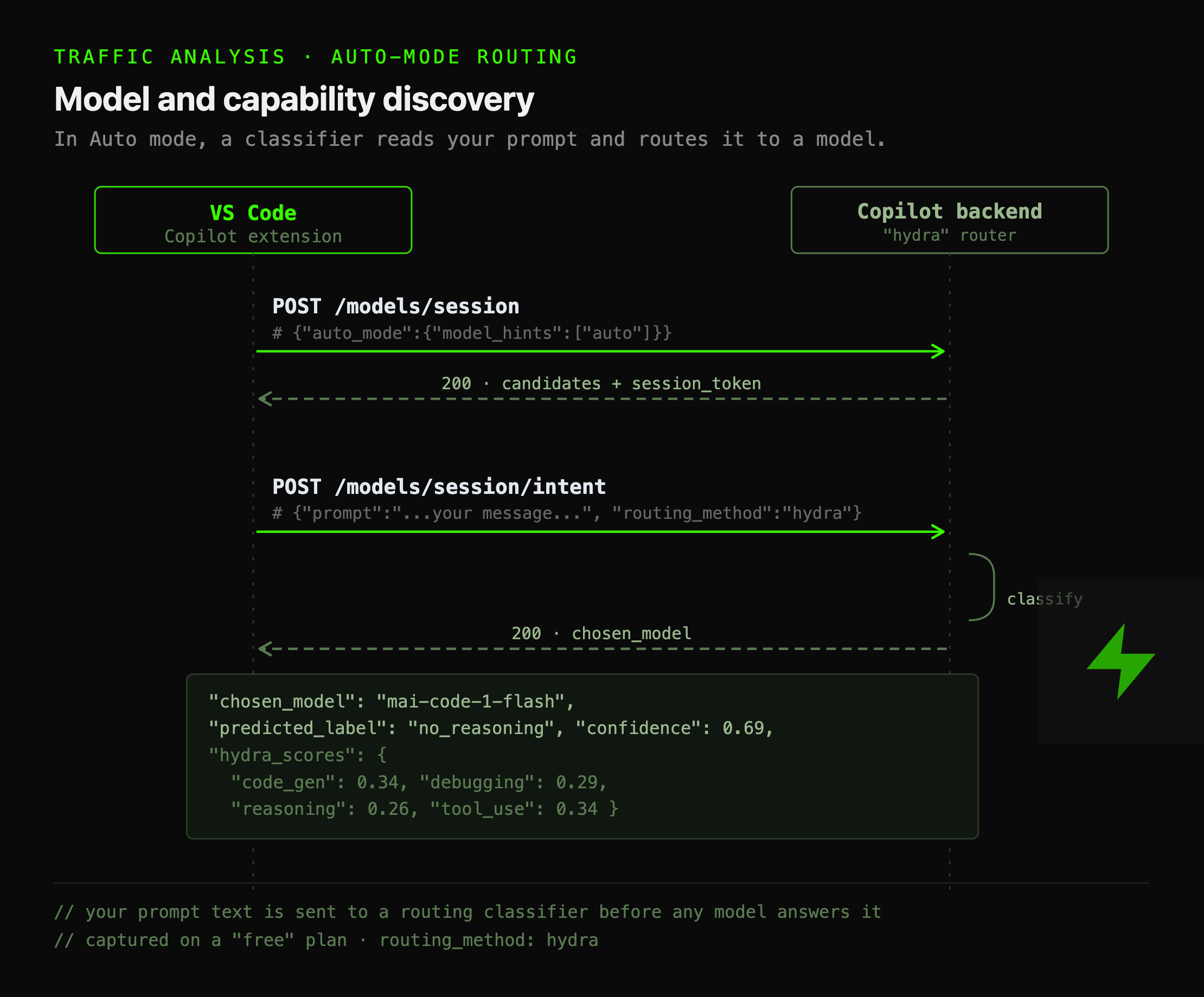
This is not really a secret; such behaviour is described in Copilot’s documentation. Still, it was fun to see the actual requests and responses behind it.
(Secret) environment variables
I started to play around with inline completions and ghost text, watching what was being sent via HTTP. I already knew inline completions inject the current file into prompts as context; that’s how it’s supposed to work. So no surprise here thus far.
But I still wondered about what else got sent, so I did a small test. I dropped a fake secret into a .env file - the infamous file all of us kids are told not to commit, but some of us still do.
TEST_ENV_VAR_SECRET=”a realistic looking fake token”Editing this file didn’t trigger any HTTP requests, which was good, I thought. I then opened a completely unrelated pyproject.toml, and started typing in it.
Lo and behold, the following completion request went out while I was doing it:
{
    "prompt":"TEST_ENV_VAR_SECRET=\"mysecretenvvar\"\n\nT",
    "suffix":"",
    "max_tokens":500,
    "temperature":0,
    "top_p":1,
    "n":1,
    "stop":["\n\n\n","\n```"],
    "stream":true,
    "extra":{
        "language":"dotenv",
        "next_indent":0,
        "trim_by_indentation":true,
        "prompt_tokens":175,
        "suffix_tokens":0,
        "context":[
           "Path: .env",
           "These are recently edited files. Do not suggest code that has been deleted.\nFile: pyproject.toml\n--- a/file:///Users/rafaelpierre/copilot-mitm/pyproject.toml\n+++ b/file:///Users/rafaelpierre/copilot-mitm/pyproject.toml\n@@ -18,4 +18,4 @@\n     \"polars>=1.41.0\",\n ]\n \n+# testing\n- --- IGNORE ---\nFile: config.ini\n--- a/file:///Users/rafaelpierre/copilot-mitm/config.ini\n+++ b/file:///Users/rafaelpierre/copilot-mitm/config.ini\n@@ -1,2 +1,3 @@\n TEST_CONFIG=\"test-config\"\n \n+# test .env\nEnd of recent edits"
        ]
    },
    "code_annotations":false
}
My first thought was: fine, I’ll just disable Copilot for
.envfiles. Turns out it was already disabled; I had forgotten about it.It wouldn’t have mattered; the request was fired from keystrokes in the pyproject.toml file, where inline completions were happily enabled.
Mental note: turning inline completions off for .env itself or any other “secret” extension changes nothing, because the request is not being triggered by it. But other requests can be triggered.
Asking Copilot to refresh my memory
I had seen a session_store_sql tool definition in the system prompts for many of the completion requests that I intercepted. Here is the tool description obtained from one such request:
Query the local session store containing history from past coding sessions.
Uses SQLite syntax (NOT DuckDB or Postgres).
SQL queries are read-only — only SELECT and WITH are allowed.
Use `datetime('now', '-1 day')` for date math (NOT `now() - INTERVAL '1 day'`), FTS5 `MATCH` for text search.
Tables: `sessions`, `turns`, `session_files`, `session_refs`, `checkpoints`, `search_index`.
For column details and query patterns, use the **chronicle** skill.
Actions: 'query' (execute SQL ‚Äî supports JOINs, FTS5 MATCH, aggregations), 'reindex' (rebuild index from debug logs).However, I didn’t see any tool call results being sent back after that. The tool was probably not being called. To double check, I went on and tried to force a tool call by asking a simple question in the chat: “What did I work on this week?”.
What followed was a back-and-forth between the model and a local SQLite database called session-store.db, which I didn’t know existed:
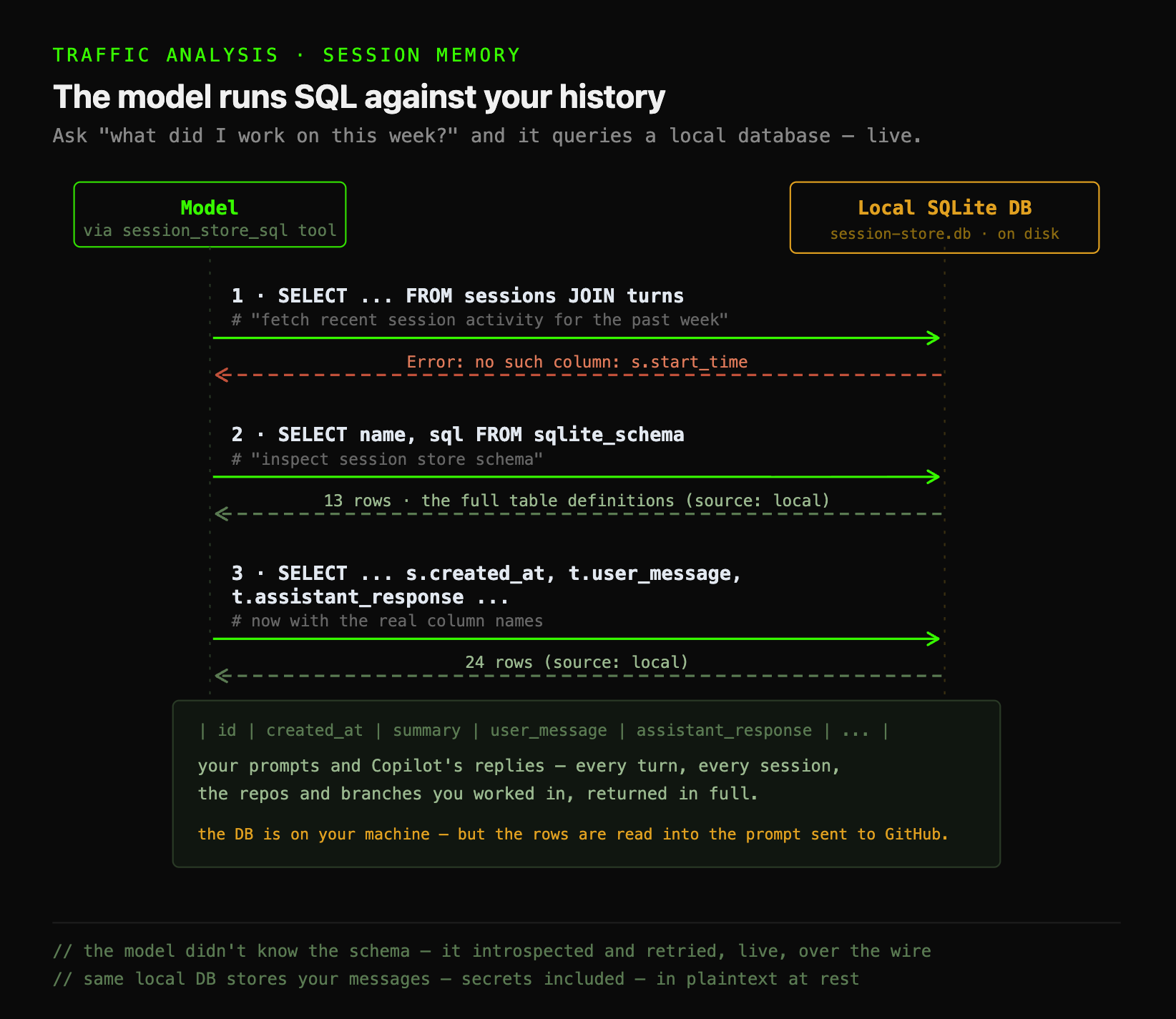
As I learned by looking into these conversations, session_store_sql is part of Copilot’s Chronicle tool, which lets it run SQL queries against session-store.db. This database stores session summaries, repos and branches you have worked on.
It also stores all of your prompts, along with their corresponding LLM responses. Copilot is keeping a queryable history of everything you’ve asked it, and reaching into that history when it’s needed.
One thing that stood out was that the model didn’t know the schema ahead of time. It initially tried the query below, which failed.
# Tool definition gets sent

{
    "type":"function_call",
    "name":"session_store_sql",
    "arguments":"{
        \"action\":\"query\",
        \"description\":\"Fetch recent session activity for the past week\",
        \"query\":\"SELECT s.id, s.start_time, s.title, t.turn_index, t.role, t.content FROM sessions s JOIN turns t ON t.session_id = s.id WHERE s.start_time >= datetime('now', '-7 days') ORDER BY s.start_time, t.turn_index;\"
    }",
    "call_id":"call_Ay35CDeV0EFXtvFI8l3VgbWI"
}

# Tool gets executed locally, results are sent back to the agent/LLM:

{
    "type":"function_call_output",
    "call_id":"call_Ay35CDeV0EFXtvFI8l3VgbWI",
    "output":"Error: no such column: s.start_time"
}
It then introspected the schema metadata to find table definitions. After that, it was finally able to get some records from my local SQLite database.
# Session Store SQLite DB introspection tool call

{
    "type":"function_call",
    "name":"session_store_sql",
    "arguments":"{
        \"action\":\"query\",
        \"description\":\"Inspect session store schema\",
        \"query\":\"
            SELECT name, sql
            FROM sqlite_schema
            WHERE type IN ('table','view');
        \"
    }",
    "call_id":"call_wY9dGEI4DSYbOXzpzPg3JTGN"
}

# Introspection tool call results get sent back to agent/LLM:

{
    "type":"function_call_output",
    "call_id":"call_wY9dGEI4DSYbOXzpzPg3JTGN",
    "output":"Results: 13 rows (source: local)
        | name | sql |
        | --- | --- |
        | schema_version | CREATE TABLE schema_version (\n\t\t\t\tversion INTEGER NOT NULL (...)\
    ",
}
Eventually I became curious about querying my session data and finding out what else was stored there. So I started by looking at the metadata.
$ sqlite3 ~/Library/Application Support/Code/User/globalStorage/github.copilot-chat/session-store.db

# Output

CREATE TABLE turns (
  id INTEGER PRIMARY KEY AUTOINCREMENT,
  session_id TEXT NOT NULL REFERENCES sessions(id),
  turn_index INTEGER NOT NULL,
  user_message TEXT,
  assistant_response TEXT,
  timestamp TEXT DEFAULT (...),
  UNIQUE(session_id, turn_index)
);
As you can see, user_message and assistant_response are stored in plain text. Let’s query some of these manually.
$ sqlite3 session-store.db "SELECT substr(user_message,1,60) FROM turns LIMIT 5;"
What is ML?
hello
testing
These were some messages I had sent to Copilot previously to test my mitmproxy capture, so once again, no surprises. But what about messages that could potentially include something a bit more… problematic?
To find that out, I sent Copilot a chat message containing fake secret data: a fake GitHub token, a fake AWS key, a connection string with a password in it.
Then, I went back to the database to see what had been written.
$ sqlite3 session-store.db "SELECT user_message FROM turns \
    WHERE user_message LIKE '%ghp_%' OR user_message LIKE '%postgres://%';"

...
GITHUB_TOKEN=ghp_«fake token, stored exactly as typed»
DATABASE_URL=postgres://admin:«password»@db.example.com:5432/prod
...
I’ll admit, I got tempted to establish “All there, in plain text” as the headline.
But although this is true, my conclusion was actually less alarming - and actually more interesting, I would argue: AI coding tools are becoming stateful systems.
AI coding tools are becoming stateful systems. They increasingly combine user workspace + recent edits + conversations + tools + history + model routing.
Each new source of context improves usefulness and increases the amount of developer state that the system can access. But it also brings additional challenges: increasing context bloat, data confidentiality and privacy concerns.
While I enjoyed doing the reverse engineering exercise, I also became curious to see if my assumptions were grounded actual code. To confirm those, I needed to go to the code.
Reconciling these findings with the source code
Unencrypted Session Store
Session store code is part of the Chronicle extension, and it lives in sessionStore.ts. The table definition is exactly what I’d seen on disk: user_message and assistant_response as plain text, no column-level masking or anything like that.
But the schema itself doesn’t tell you whether something scrubs the data on the way in. The write path does. Here’s the insert that records each turn:
INSERT INTO turns (session_id, turn_index, user_message, assistant_response, timestamp)
VALUES (?, ?, ?, ?, ?)
…and the values bound to it:
turn.session_id,
turn.turn_index,
turn.user_message ?? null,
turn.assistant_response ?? null,
turn.timestamp ?? new Date().toISOString(),
turn.user_message goes in as-is. I searched the code for any redaction, sanitization, secret-filtering, or masking in the write path. Nothing, there’s no scrubbing step. The plaintext storage isn’t a bug or a missed edge case; it’s simply what the code does.
That answers the first question: it’s deliberate, in the sense that nothing was ever built to prevent it.
To leak or not to leak
The “recently edited files” string I saw on the mitm capture comes from recentEdits.tsx. The default sliding window behavior is hardcoded: up to 20 files, 8 edit summaries, and 3 lines of context around each change, which is how a line I hadn’t touched (the one with the fake secret in it) became part of an HTTP request to Copilot API.
There’s no default .env rule anywhere. On an individual plan, nothing treats .env as special, nor is there any integration with the current space’s
.gitignore.
There’s an exclusion gate, but it’s tied to a “repository policy”, a Business/Enterprise GitHub feature and admin-controlled.
Parting words
With great power come great responsibilities
This turned out to be a great exercise in understanding how an AI coding tool implements its harnesses. I believe a lot of these details and practices can be absorbed by different teams building their own AI systems.
Some of the questions I often ask myself while building such systems remain after all this. What context should get injected? What should be sent to the model? What should stay local? Which tools should the model be able to call? What gets stored in short term memory? What gets promoted to long term memory?
Context is becoming the product
Increasingly, I think context is becoming the product.
Models and SOTA benchmark results matter, of course. But the real differentiation between AI coding tools - and AI tools in general, for that matter - seems to be shifting toward how well they assemble the right context: your code, recent changes, actions, conversations, tools, history, and whatever else might help solving the task at hand. This creates two challenges.
The first is an engineering problem: more context doesn’t necessarily translate to better context. The challenge is keeping it lean, relevant and cache friendly, without drowning the model in prompt bloat.
The second is around privacy and confidentiality. The more a harness collects and persists contextual data, the more carefully it needs to define what can cross boundaries - between files, sessions, machines and ultimately, the model API.
Copilot is clearly moving in this direction, and some of what I’ve found is clever. Some of it brought me an awkard feeling. And for now, none of it convinced me to become a paying customer again.
But it did convince me of something else. If you’re building AI applications, reverse engineering and studying the harness around models might teach you more than studying the model itself.
I hope you enjoyed this article. If you have any questions, if this resonates, if you have suggestions, reply to this email or drop a comment - I read all of them.